
This WordPress security checklist is for owners and managers of company websites. After reading it you can check the main protections yourself and give your developer or host a clear list of what to fix. We checked the facts against official WordPress pages and other named sources on 30 October 2026.
This is general information, not legal, tax or professional advice. Every site is set up differently, so check the details with a qualified adviser for your country and your hosting.
Start with updates
Updates are the first line of defense, and WordPress ships security fixes often. At the time of writing (30 October 2026) the current release is WordPress 7.1.4, published on 28 October 2026 as a security release. WordPress.org lists three more security releases in the six weeks before it: 7.1.1 on 17 September (11 security fixes), 7.1.2 on 22 September (a fix for a critical severity vulnerability) and 7.1.3 on 6 October (7 security fixes).
Know what updates itself. The WordPress developer documentation says minor core releases update automatically by default, a feature added in WordPress 3.7. Since WordPress 5.6, new installations also get major core updates by default, while older sites keep their earlier behavior unless someone changes it. Plugins and themes are different. Since WordPress 5.5, an administrator has to opt in for each one. WordPress runs these auto-updates twice per day by default, and they rely on WordPress Cron, so look for errors under Tools > Site Health.
Check the server too. The WordPress requirements page recommends PHP 8.3 or greater, plus MySQL 8.0 or MariaDB 10.11 or greater. It lists PHP 7.4 and MySQL 5.5.5 as legacy minimums that have reached end of life and may expose a site to vulnerabilities. Ask your host which PHP version your site runs.
Treat plugins as the main risk
Patchstack, a WordPress security company, reports in its State of WordPress Security in 2026 that 11,334 new vulnerabilities were found in the WordPress ecosystem in 2025. Of these, 91% were in plugins and 9% in themes. Only 6 were in WordPress core. Patchstack also says 46% had no developer fix in time for public disclosure. These are Patchstack's figures, not ours. The same report says website owners cannot rely on plugin updates as a security measure, which is why the other steps in this list matter.
- Delete plugins and themes you do not use. The WordPress hardening guide says to keep plugins updated and remove the ones you do not need.
- Download WordPress only from wordpress.org, as the guide says, and apply the same care to plugins and themes.
- Read a plugin's page before you install it. The directory lists over 77,000 free plugins, so quality varies. Check the last updated date and the active installs.
- Have a developer review any plugin that asks for write access to your WordPress files.
- Consider a firewall. The guide describes firewall plugins, a web application firewall such as ModSecurity, and reverse-proxy services.
For the wider picture of web risks, see our guide to the OWASP Top 10 for business owners.
Protect logins and user accounts
Passwords and two-step sign-in
The hardening guide says a password should not be a variation of your name, username, company name or site name, a dictionary word, a short password, or digits only or letters only. It notes that password generators can create secure ones. It also suggests two-step authentication, and SFTP instead of plain FTP if your host provides it.
The Two Factor plugin on WordPress.org is one option. On 30 October 2026 its page showed version 0.17.0 and these methods: an authenticator app (TOTP) and backup codes, both marked as recommended, plus email codes. Support for FIDO U2F security keys was removed. Other two-step plugins exist, so ask your developer which one fits your team.
Also avoid usernames such as admin or webmaster, as the hardening guide advises, and rename any account that uses them. Add define( 'FORCE_SSL_ADMIN', true ); to wp-config.php so logins and the admin area always use HTTPS.
Roles: give each person the least access they need
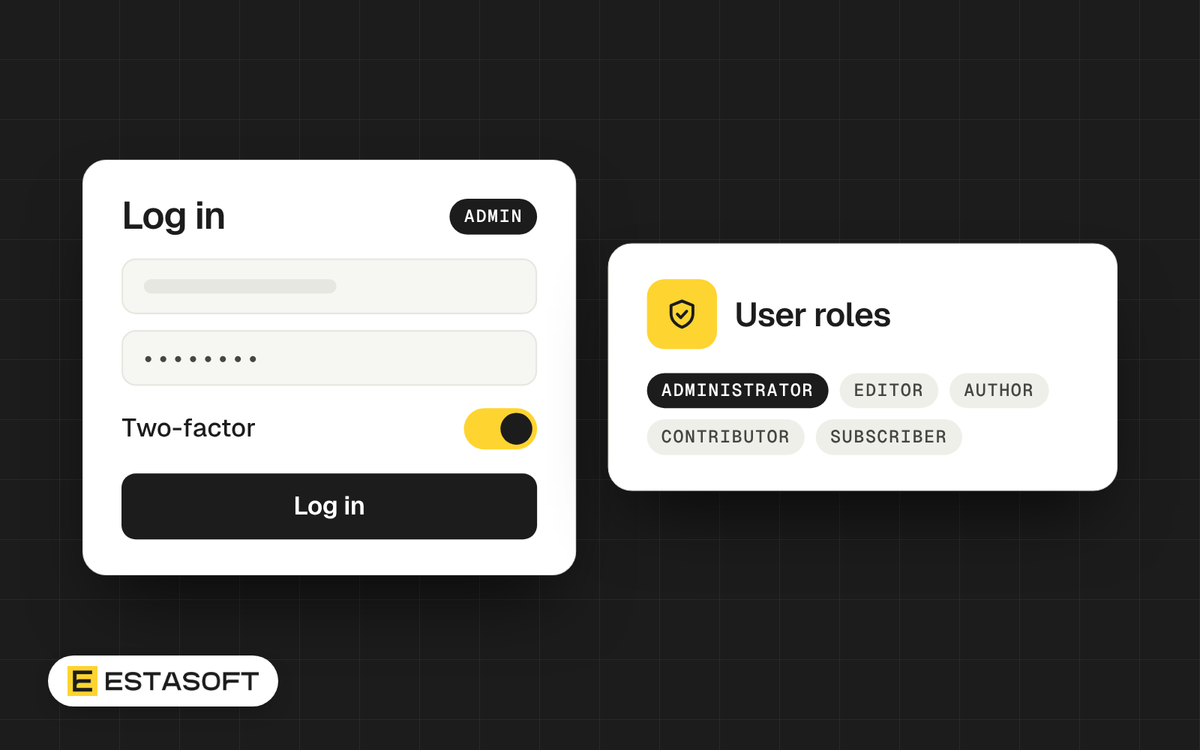
WordPress has five standard roles on a single site. The documentation describes them like this:
- Administrator: all administration features of the site.
- Editor: publishes and manages posts, including other users' posts.
- Author: publishes and manages their own posts.
- Contributor: writes their own posts but cannot publish them.
- Subscriber: manages only their own profile.
Learn WordPress notes that there is usually only one administrator per website, and that editors cannot install themes or plugins or approve updates. So your marketing team can publish without holding the keys to the whole site. Remove accounts when people leave.
Lock down files and settings
These are small changes your developer can make in minutes. Ask for each one by name.
- DISALLOW_FILE_EDIT. The line define( 'DISALLOW_FILE_EDIT', true ); removes the code editor from the dashboard. It does not stop someone uploading a malicious file.
- DISALLOW_FILE_MODS. This blocks installing and updating plugins and themes from the admin area and also disables the editor. Use it only if updates are handled another way.
- File permissions. The hardening guide gives 755 for directories and 644 for files, and 400 or 440 for wp-config.php. Your host may use other values, so follow its advice.
- XML-RPC. It has been on by default since WordPress 3.5. The xmlrpc_enabled filter turns off the authenticated methods but not pingbacks. Disable it only if no app or service on your site needs it.
Back up files and database, and test a restore
WordPress documentation says a full backup has two parts, the database and the files, and you need both to restore a typical site. It suggests weekly backups for smaller sites, daily backups for busy ones, and a backup before every upgrade. It also advises keeping at least three to five recent backups in separate locations. The hardening guide recommends regularly timed snapshots of the whole installation, kept in a trusted location. Keep some older ones too, so a copy from before a break-in still exists. Our guide to the 3-2-1 backup rule covers retention and restore tests in more detail.
Add HTTPS and security headers
Send all HTTP traffic to HTTPS. Then ask your host or developer to add response headers. These values come from MDN Web Docs and the OWASP Cheat Sheet Series:
- Strict-Transport-Security. MDN says max-age should be at least six months (15768000 seconds) and recommends two years (63072000). The includeSubDomains option can disable subdomains that lack HTTPS, so test first. The preload option needs includeSubDomains and at least one year.
- X-Content-Type-Options: nosniff. The browser then trusts the declared content type.
- Referrer-Policy: strict-origin-when-cross-origin. OWASP suggests setting this explicitly.
- X-Frame-Options: DENY. This blocks framing of your pages, so check that you do not embed them yourself.
- X-XSS-Protection. OWASP says not to set it, or to set it to 0.
Watch the site
Open Tools > Site Health. The Status tab sorts findings into critical issues and recommended improvements. It flags an outdated PHP version and the message that background updates are not working as expected. The hardening guide also describes OSSEC, an open-source intrusion detection system that analyzes logs and alerts you when files change.
Your WordPress security checklist
- WordPress core is on the latest release, and minor updates are automatic.
- Each plugin and theme is updated, or has a named person who updates it.
- Unused plugins and themes are deleted.
- PHP, MySQL or MariaDB versions are supported by your host and meet the WordPress recommendations.
- Every user has a strong password, and two-step sign-in is on for administrators and editors.
- No account is named admin, and each person has their own login.
- Roles match jobs, and former staff are removed.
- DISALLOW_FILE_EDIT and FORCE_SSL_ADMIN are set.
- File permissions follow the guide or your host's rules.
- HTTPS is forced, and security headers are tested.
- Backups include files and database, sit in separate places, and a restore has been tried.
- Site Health shows no critical issues.
Put the weekly and monthly tasks on a calendar. Our website maintenance checklist shows who does what and how often.
Mistakes to avoid
- Sharing one administrator login between several people.
- Switching on DISALLOW_FILE_MODS with no plan for updates.
- Keeping the only backup on the same server as the site.
- Never trying a restore until the day something breaks.
- Ignoring a Site Health warning about the PHP version.
- Adding includeSubDomains to the HSTS header without testing every subdomain.
Questions owners ask
Is WordPress safe enough for a business website?
Patchstack counted 6 vulnerabilities in WordPress core in 2025, while 91% of the new ones were in plugins. So the weak point is usually the add-ons and how well they are maintained. A WordPress site can be well protected if updates, access control and backups are managed on a schedule.
Should I turn on auto-updates for every plugin?
WordPress treats plugin and theme auto-updates as opt-in, and its documentation suggests making sure you can roll back before you enable them. For a simple brochure site, turning them on can be reasonable. For shops or sites with custom code, test updates on a staging copy before they go live.
Do I need a security plugin?
The hardening guide describes three kinds of firewall protection: a firewall plugin, a web application firewall or a reverse-proxy service. A firewall adds a layer, but it does not replace updates, access control or backups.
Need a hand?
Our web development work includes WordPress, and our care plans list updates and security checks (access, backups and dependencies reviewed) as part of monthly care. If you want us to review your site against this list, send a short brief on the contact page.
Sources
- WordPress developer resources: Hardening WordPress
- WordPress developer resources: Changing file permissions
- WordPress developer resources: Editing wp-config.php
- WordPress developer resources: Upgrading WordPress
- WordPress developer resources: Backups
- WordPress developer resources: xmlrpc_enabled hook
- WordPress Codex: XML-RPC support
- WordPress.org documentation: Plugin and themes auto-updates
- WordPress.org documentation: Roles and capabilities
- WordPress.org documentation: Site Health screen
- Learn WordPress: User management
- WordPress.org news: WordPress 7.1.4
- WordPress.org news: Releases
- WordPress.org: Requirements
- WordPress.org plugin directory: Two Factor
- WordPress.org plugin directory
- Patchstack: State of WordPress Security in 2026
- MDN Web Docs: Transport Layer Security configuration
- MDN Web Docs: Strict-Transport-Security header
- MDN Web Docs: X-Content-Type-Options header
- OWASP Cheat Sheet Series: HTTP security response headers