
This guide covers the IT basics for a small business: who can sign in, which devices you own, how updates happen and who you call when something breaks. It is for owners and managers who are not technical. You will finish with a checklist you can hand to whoever looks after your IT, whether that is a staff member, a provider or a freelancer.
The advice comes from three government sources we opened on 30 October 2026: the UK National Cyber Security Centre (NCSC), the Canadian Centre for Cyber Security and the US Cybersecurity and Infrastructure Security Agency (CISA). This is general information, not legal, tax or professional advice. Check with a qualified adviser for your country before you rely on it.
Three government baselines, one shared message
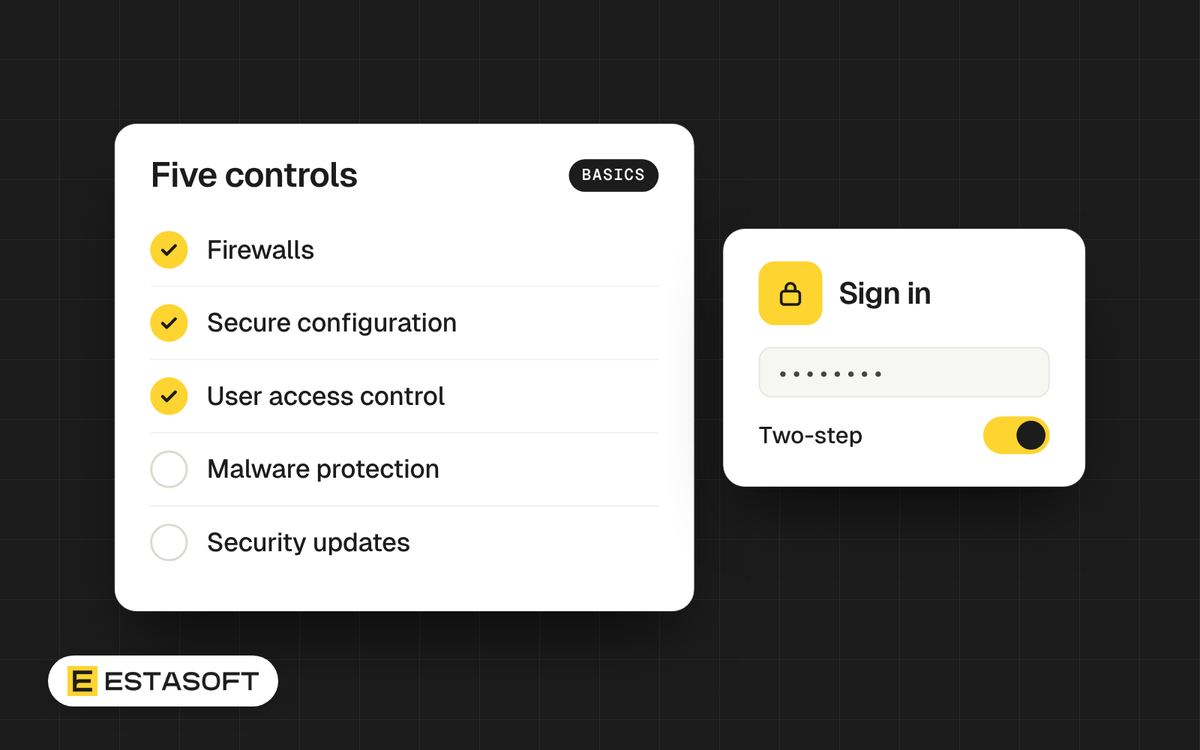
- UK, Cyber Essentials. The NCSC names five technical controls: firewalls, secure configuration, security update management, user access control and malware protection. The requirements document we read is version 3.3, dated April 2026. Cyber Essentials is a certification scheme with two levels, but you can use the five controls as a plain checklist without certifying.
- Canada, baseline controls. The Canadian Centre publishes Baseline cyber security controls for small and medium organizations, version 1.2, with a page date of 18 February 2020. It has 13 baseline control areas with 42 baseline controls, plus 8 organizational controls (50 in all), and it is written for organizations with fewer than 500 employees. The page says the information remains valid.
- US, CISA. CISA's guidance for businesses lists four steps: teach employees to avoid phishing, require strong passwords, require multifactor authentication and update business software.
The sections below group their advice by topic, starting with the area that matters most.
Accounts and sign-in come first
An account is the front door to your email, your bank and your website. Most controls in all three lists protect it.
Turn on multi-factor sign-in
Cyber Essentials 3.3 says sign-in to cloud services must always use multi-factor authentication (MFA). It adds that MFA should be used on administrator accounts and internet-accessible accounts where available. The NCSC says any type of two-step verification is better than none, and that passkeys should come first for business-critical accounts where a service supports them.
Start with accounts that hold customer or staff data or would cause serious disruption if stolen. The NCSC lists banking, HR and payroll, social media, online storage, your company website (and its domain hosting account, if separate) and point-of-sale software.
Set one password rule and write it down
The sources use different numbers, so pick one rule for your team.
- Cyber Essentials 3.3: where a password is the only factor, at least 12 characters, or at least 8 plus automatic blocking of common passwords. With MFA, at least 8. Systems also need protection against guessing, for example no more than 10 guesses in 5 minutes.
- CISA Secure Our World tip sheet: at least 16 characters, random, unique to each account and kept in a password manager.
- Canadian baseline: force a password change only when there is evidence or suspicion of compromise, not on a calendar schedule.
We suggest the strictest numbers: 16 characters or more, a password manager, and MFA on top.
Keep admin accounts separate and remove old ones
Cyber Essentials requires separate accounts for administrative work, never used for email or web browsing. It also requires user accounts to be removed or disabled when no longer needed, for example when someone leaves. The Canadian baseline says the same. The NCSC adds a habit: review who has access to important accounts every few months.
Devices: list them, update them, retire them
You cannot protect a device you do not know about. Write down every laptop, phone, tablet and router that touches business data.
Scope is wider than most owners expect. Under Cyber Essentials 3.3, personal devices that access organization data are in scope, and so are devices used for home working. Phones used only for calls, texts or MFA apps are out. Cloud services cannot be excluded.
- Install serious updates within 14 days. This window applies to updates the vendor rates critical or high risk, that carry a CVSS v3 base score of 7 or above, or that come with no severity details. Applying every update within 14 days is strongly recommended.
- Retire unsupported software. It must be licensed and supported, and removed once unsupported. The NCSC adds that you need a model that still gets updates, not the newest one.
- Use malware protection. Cyber Essentials accepts anti-malware software on Windows and macOS devices, or application allow listing where only approved, code-signed applications run. The NCSC says to check that built-in antivirus and firewall were not switched off.
- Use a software firewall away from the office, for example on public Wi-Fi.
- Change the defaults. Default passwords must be changed, auto-run disabled and unnecessary accounts, such as guest accounts, removed.
For phones and tablets, the Canadian baseline asks you to document whether devices are company-owned or personal, keep work and personal data apart, allow apps only from trusted sources and encrypt sensitive information.
Email, phishing and Wi-Fi
The NCSC warns that a hacked business inbox can expose banking details, allow impersonation and let attackers reset passwords on your other accounts. Its warning signs include misspelled sender addresses, unexpected attachments, generic greetings, links to unknown sites and poor logos. If you doubt a message, contact the organization using details from its official website, not from the message. CISA's steps are to recognize, report and delete.
The Canadian baseline also asks for DMARC on all email services. Our plain guide to SPF, DKIM and DMARC for business email explains what that means.
For Wi-Fi, the same baseline says to use only secure Wi-Fi, preferably WPA2-Enterprise, and never to connect public Wi-Fi to the corporate network. It dates from 2020, so ask your IT provider what your equipment supports today.
Backups and a written plan
CISA recommends the 3-2-1 rule: three copies of important files, on two types of storage, with one copy off-site. Cyber Essentials 3.3 stresses backups too, although it says they are not a technical requirement of the scheme. Our guide to the 3-2-1 backup rule and restore tests gives the routine.
The Canadian baseline also asks for a written incident response plan that says who is responsible and lists contact details for outside parties such as regulators, with an up-to-date hard copy. It asks you to name a leader responsible for IT security. A paper copy helps because the file on a locked computer is no use.
Choosing and managing support
IT help can come from a staff member, a managed service provider (MSP), a software vendor or a developer on call. Each can work. What matters is that someone is named, reachable and held to the same rules as your staff. CISA notes that businesses relying on MSPs face risk because MSPs are attractive targets.
The Canadian baseline suggests questions for any outside provider:
- How do you handle and access our sensitive information?
- In which country is our data stored or used?
- Are cloud admin accounts protected by two-factor authentication and kept separate from internal admin accounts?
- Can you share an independent audit report, such as a SOC 3 report?
Add two of your own: what happens to our accounts and data if we end the contract, and who answers out of hours?
A checklist you can hand to your IT person
This week
- List every device and cloud service that holds business data, including personal phones used for work email.
- Turn on MFA for email, banking, payroll, website admin and storage.
- Choose a password manager and write your password rule.
- Check automatic updates, antivirus and firewall on each device.
- Mark anything unsupported and set a replacement date.
- Confirm a current backup exists and someone can restore it.
- Print a contact sheet: IT contact, bank, domain registrar and website developer.
Every few months
- Review who can access important accounts and remove what nobody needs.
- Check that serious updates go in within 14 days.
- Run a restore test.
When someone joins or leaves
- Joiner: an individual account, MFA set up, no shared logins, admin rights only if the job needs them.
- Leaver: disable accounts as soon as they leave, collect devices and change shared passwords they knew.
Keep your website on the same schedule with our website maintenance checklist.
Mistakes to avoid
- Sharing one admin login across the team.
- Running a computer or app that no longer gets updates because it still works.
- Forcing frequent password changes while reused passwords stay in place.
- Leaving former staff accounts active.
- Treating cloud services as someone else's job. Cyber Essentials does not let you exclude them from scope.
Questions owners ask
Do I need Cyber Essentials?
The NCSC describes it as a certification scheme with two levels. Whether you need the certificate depends on what your customers and contracts ask for, so check with them. The five controls are useful either way.
How long can I wait to install updates?
For updates the vendor rates critical or high risk, Cyber Essentials 3.3 sets 14 days from release. It strongly recommends the same window for all updates. Automatic updates remove most of the effort.
Should staff change passwords regularly?
The Canadian baseline says to force a change only when there is evidence or suspicion of compromise. The NCSC says to change a reused business-critical password as soon as possible. Unique passwords plus MFA do more than a calendar reminder.
Need a hand?
We build and look after websites, stores and custom software, so we can help with the website and software side of this list. Our care plans page lists updates and security checks, including access and backups reviewed, and our web development page explains how we work on company sites. For office devices and networks you may also need a local IT provider. To start, send a short brief on the contact page.
Sources
- NCSC: Cyber Essentials: Requirements for IT Infrastructure, version 3.3
- NCSC: Cyber Essentials
- NCSC: Small organisations guide to cyber security, Secure your important online accounts
- NCSC: Small organisations guide to cyber security, Protecting your devices
- NCSC: Small organisations guide to cyber security, Secure your email
- NCSC: Small organisations guide to cyber security, Spotting cyber attacks
- Canadian Centre for Cyber Security: Baseline cyber security controls for small and medium organizations
- CISA: Secure your business
- CISA: Secure Our World, 4 Easy Ways to Stay Safe Online (tip sheet)
- CISA: Back up business data
- CISA: Small and medium businesses